/GWCC_287_shortline.jpg?width=350&height=56&name=GWCC_287_shortline.jpg)
Purpose
Ticket statuses help your team track the progress of a support request. By updating statuses consistently, you’ll keep your pipeline organized and ensure more accurate reporting.
Understanding Ticket Statuses
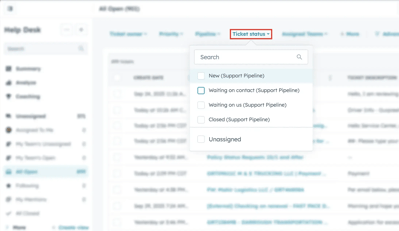
- Open → The ticket is active and requires attention.
- Waiting on Contact → The ticket is waiting on the customer or another contact external to Great West Service for more information or action.
Note: The ticket status will automatically update to "Waiting on Contact" when messages are sent to the customer via email from HubSpot. Once the customer responds, the ticket status will automatically change back to "Waiting on Us."
- Waiting on Us → The ticket is waiting on someone from the Great West Service team to move it to closed.
- Closed → The ticket is resolved or no longer active.
Note: If a closed ticket receives a reply from the customer, it will automatically reopen with the status "Waiting on Us."
How to Change a Ticket’s Status
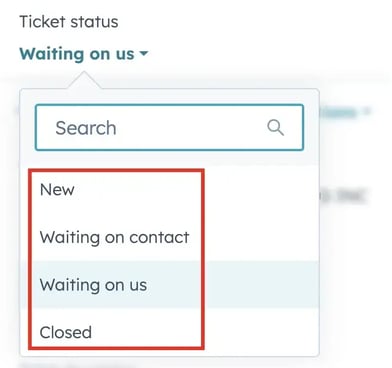
- Open the ticket record in HubSpot.
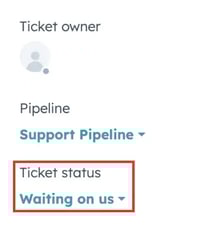
- Locate the Ticket status property.
- Select the correct status from the dropdown (e.g., Open, Waiting on Contact, Closed).
Tip: You can also send messages from the ticket record and set the status to "Waiting on Contact" automatically. HubSpot will handle the status updates based on customer responses.
Last Updated: October 14th, 2025